Just in case you've jumped the gun a little; if you haven't yet installed WordPress, head over to the tutorial to find out how. Otherwise lets get started and learn how to install a WordPress theme!
Table of Contents
What is a WordPress theme?
A WordPress theme is a collection of files, templates, and stylesheets that provide 'the look' of your site. WordPress themes have been the de facto way to style WordPress sites for years. There are tens of thousands of them out there, free and premium.
How to install a WordPress theme
Installing a free theme from WordPress.org
If you're looking to install a free theme from the theme library on WordPress.org, you can do this directly within your blog dashboard.
Head to Appearance > Themes > Add New
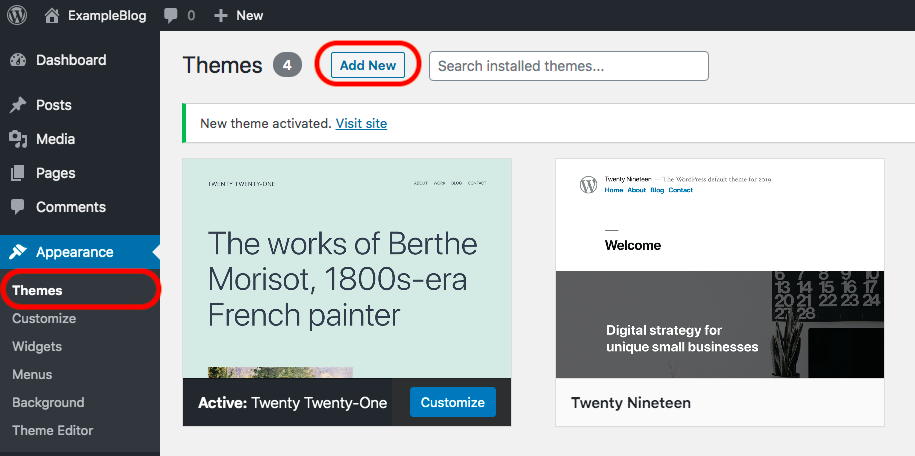
A view of the themes installed on your WordPress site.
Here you can browse or search the themes available from WordPress.org's theme library.
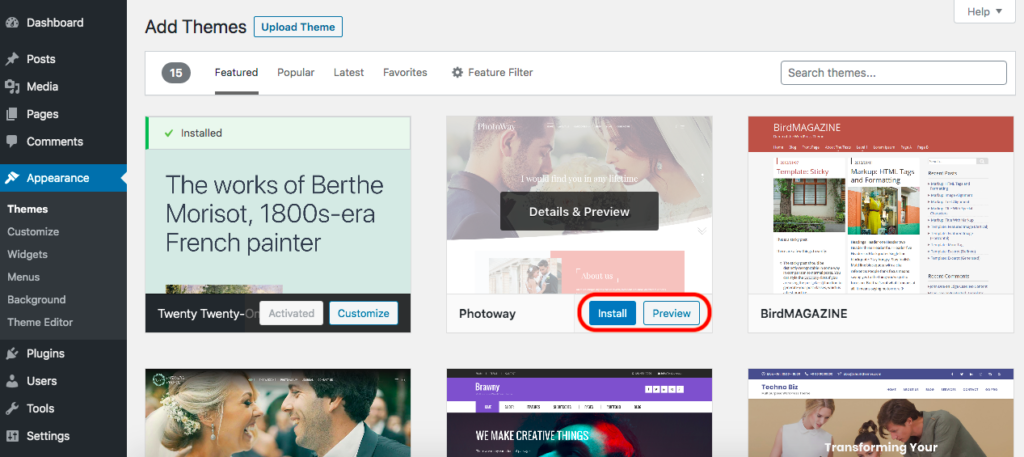
The WordPress.org theme directory, available within your WordPress dashboard
Once you've found a theme you like, you can install or preview it by hovering over the theme and then hitting either the preview or install button. Preview will show you a preview of the theme before you install it.
Once installed, you will need to activate your theme before it is visible on your site. The newly installed theme will appear on your themes page, and now when you hover over it, you will see the 'Activate' and 'Live Preview' buttons.
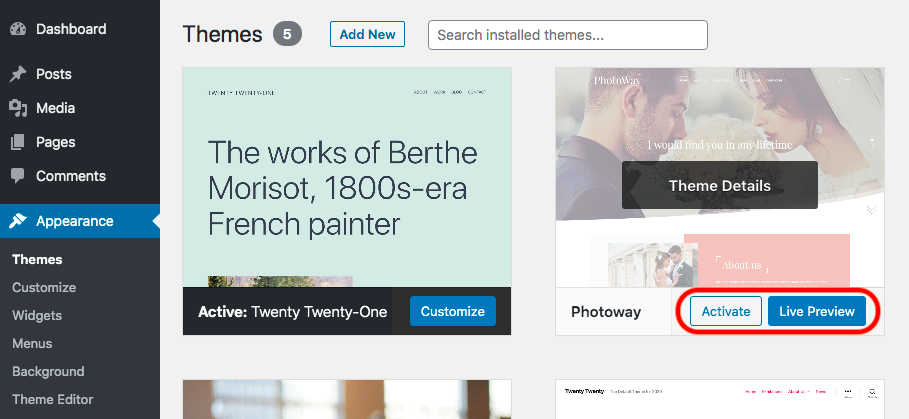
A newly installed theme ready. to be activated.
Always use the Live Preview before activating the new theme to make sure it will appear as you expect it to and make adjustments with the customizer. REMEMBER your new theme will be immediately visible to the public once activated. When everything looks good, hit 'Activate & Publish' (in the top left)
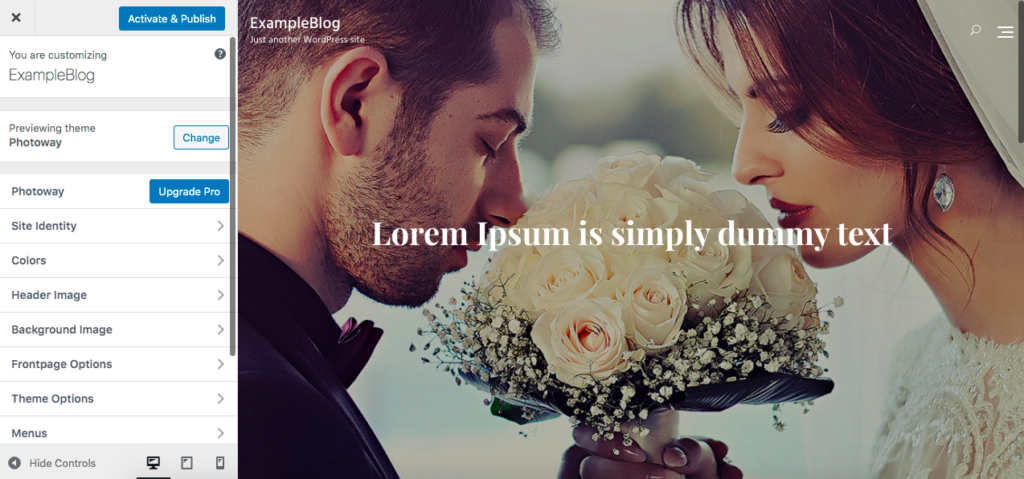
Live Preview of a new theme.
Installing an external theme via upload
This follows a similar process; only instead of choosing a theme from the directory you will have downloaded a theme from a third-party site in a .zip file format.
Again head to Appearance > Themes > Add New
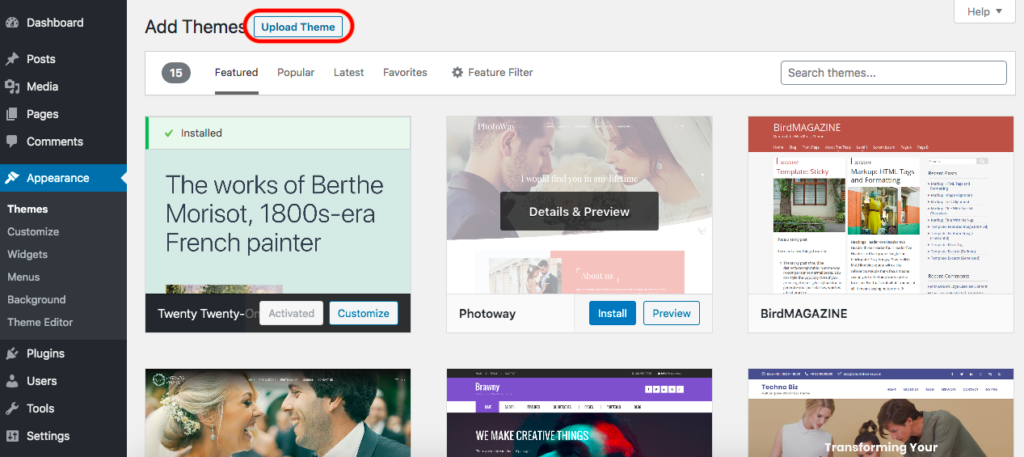
Then, click Upload Theme to reveal this file upload dialog:
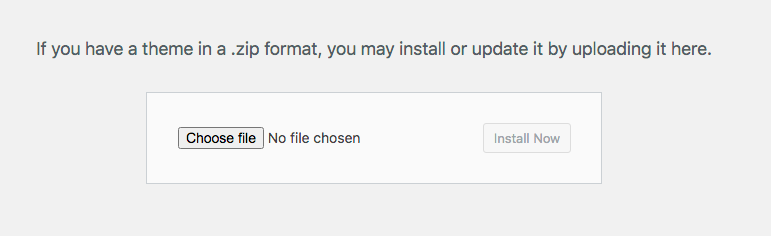
Drag 'n' drop your zip file here, or click Choose File to find and select the file on your computer, and click Install Now.
Once installed, you can continue to follow the steps above to preview and activate.
How to delete a WordPress theme
So you've tried a few themes before settling on the one you like; now you need to tidy up after yourself and delete all those themes you rejected.
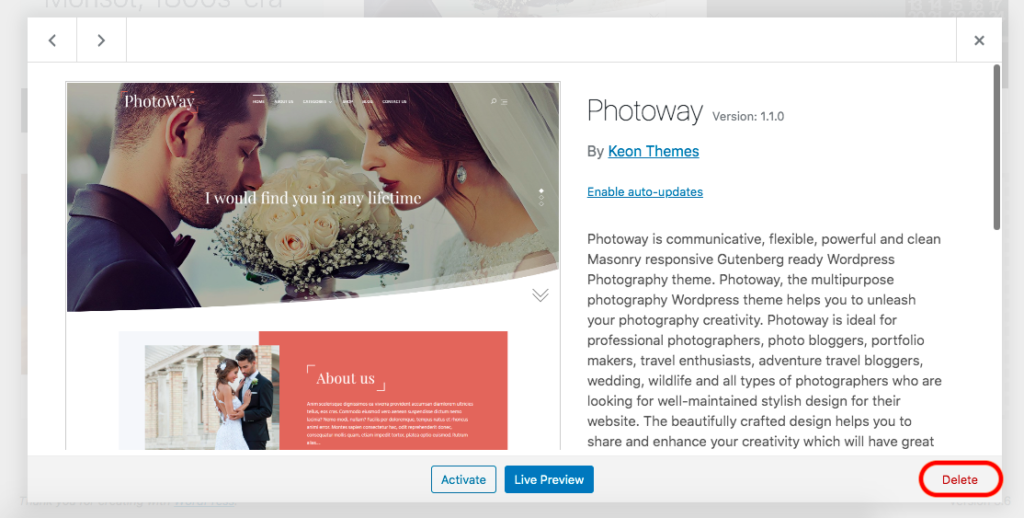
Simply hover over the theme you want to delete and click the Theme Details button in the centre.
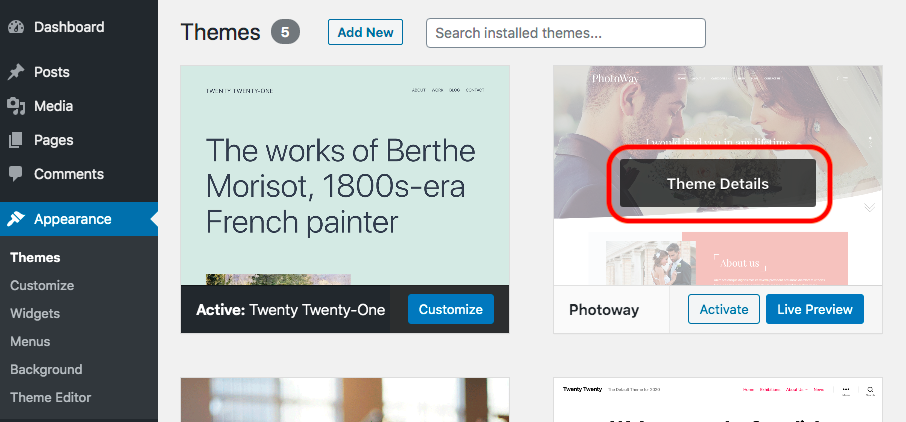
Hover over a theme and click 'Theme Details' for more information
Then, in the bottom right of the theme details pop-up is the Delete button; click this to delete the theme from your WordPress Site.
Some Theme Recommendations
Some great themes come with loads of great features in their free versions. Here are a few popular examples:
- Astra – Fast, Lightweight & Customizable Free WordPress Theme
- OceanWP: Free Multi-Purpose WordPress Theme
- Divi — The Ultimate WordPress Theme & Visual Page Builder
As always, do your research, read reviews, check if the developer offers support, and, if possible, get recommendations from fellow bloggers. Try asking around in Facebook Groups such as the Blogger Tech Support group.