Many WordPress website owners want to know how to install Google Analytics on WordPress. With the Rank Math plugin installed, you can easily track your WordPress site's keywords and see what pages perform best for you!
This post will teach you how to use Rank Math to install your Google Analytics tracking code; this method is suitable for site owners of all skill levels and has the added advantage of supporting your site's search engine optimisation and being totally free.
Google Analytics is the go-to tool for anyone who wants additional information regarding where their visitors are coming from, what pages they visit and which keywords they use.
Step One: Install Rank Math on WordPress
The first step for setting up Rank Math with Google Analytics is to install the plugin. After logging into your WordPress dashboard and going to Plugins, click 'Add New' and in the search bar type: Rank Math. Once you've found it, hit install and then activate.
Learn how to install Google Analytics without a plugin
Step Two: The Rank Math Setup Wizard
The setup wizard will take you step-by-step through the process of connecting to your Google Analytics account. If you're offered a choice of setup options; Easy or Advanced. Choose Easy.
You'll be asked for some site details to help with your Search Engine Optimisation and ensure your site is represented correctly when it appears in Google.
Next, you will be asked to select which Google Analytics property you would like to track your WordPress website with.
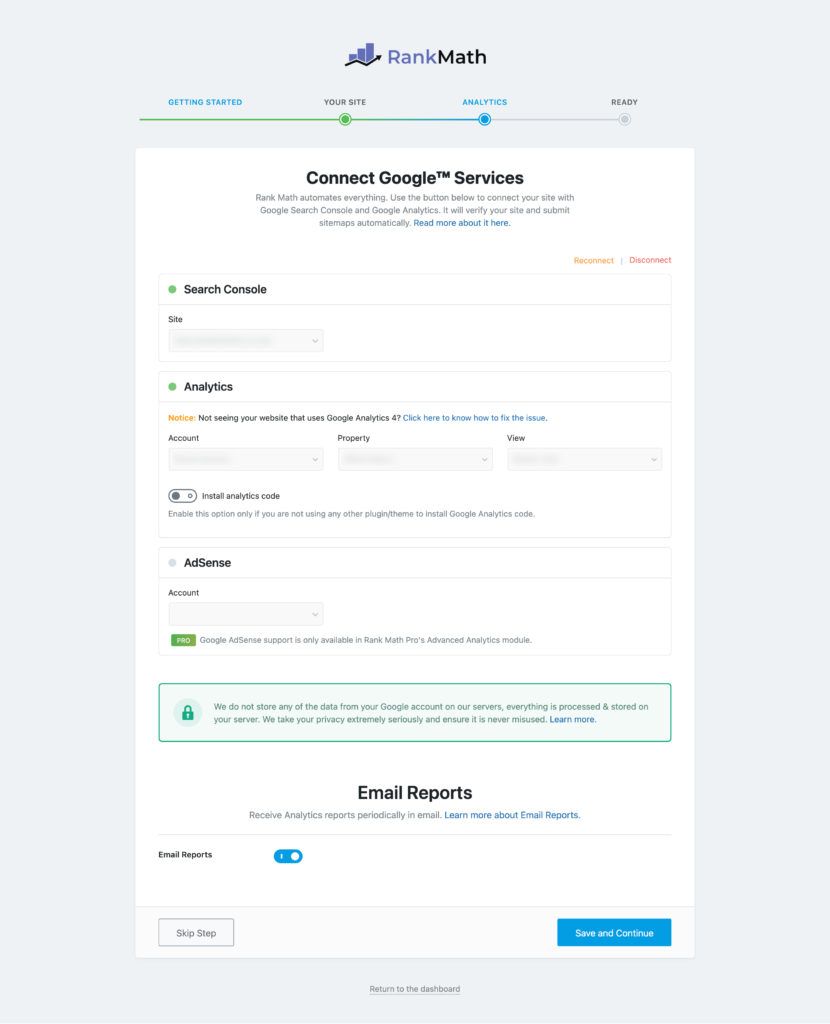
Connect To Your Analytics
Make sure the 'Install Analytics code' toggle is enabled (blue). Once complete, click on save.

Don't forget to enable this toggle!
This is also the page where you can connect to your Google Search Console account to provide Rank Math with data on what keywords you rank for and what pages are performing well.
Once you've completed the setup wizard, that's it Rank Math has installed your analytics tracking code.
Step Three: Let Google Index Your Website
After you have successfully installed the analytics tracking code, you'll want to let Google know that it is there and where to find it by using a sitemap file. The great thing is, Rank Math will create your sitemap for you!
In your dashboard, go to Rank Math -> Sitemap Settings and copy the URL of your sitemap from the top of the page. In Google Search Console, go to Sitemaps and paste the URL into the Add a new sitemap field.
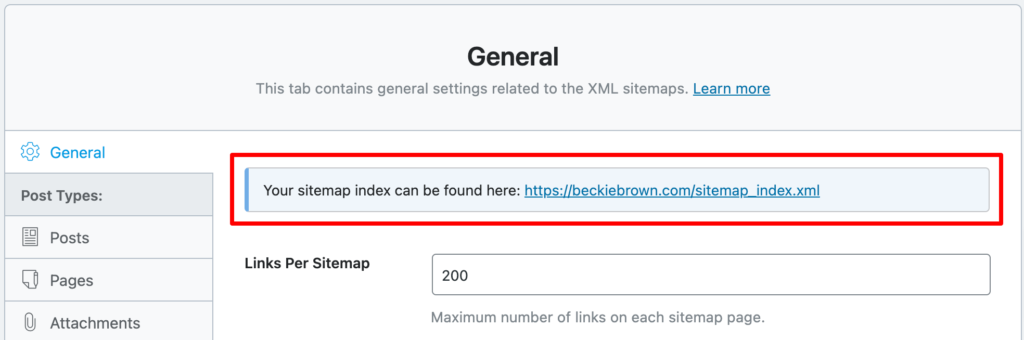
How to find your sitemap URL
Google will then index your website and start sending the necessary data to Analytics which you can find under Acquisition -> Referring sites.
Step Four: Watch Google Analytics Come To Life
Bonus! You've also now got a great tool to help you with all your SEO needs!
Learn how to install Google Analytics without a plugin
Learn more about how Rank Math can improve your site's search engine optimisation.
📌 Pin This For Later