Using One-Click Install
This example uses screenshots from Eco Web Hosting, your own hosting provider's dashboard may look different. Some providers may not offer a One-Click Install feature.
I’ve been using Eco Web Hosting to host my blogs and client sites for over 5 years and their support has always been great when needed. Their WordPress hosting packages start at £5.99 per month. If you haven't yet purchased your hosting you can use my affiliate link and the following coupon code to get 20% off managed WordPress hosting: 20AFMWP
Recommended Reading: What is WordPress?
Find the One-Click Installs in your Hosting Control Panel and click Wordpress:

The next page allows you to choose the location of your blog. The domain is being installed on and the directory it is being installed to:
- Domain: Select your domain. In this example, the domain is already selected (exampleblog.com)
- Directory: The directory will affect the web address of your blog. If you want your homepage to be found at your domain root (exampleblog.com), then leave the directory field blank (as shown below). RECOMMENDED FOR BEGINNERS.
- If you want your homepage to appear at exampleblog.com/news then you would set the directory to /news Only recommended if you already have a site that you are adding a blog to.
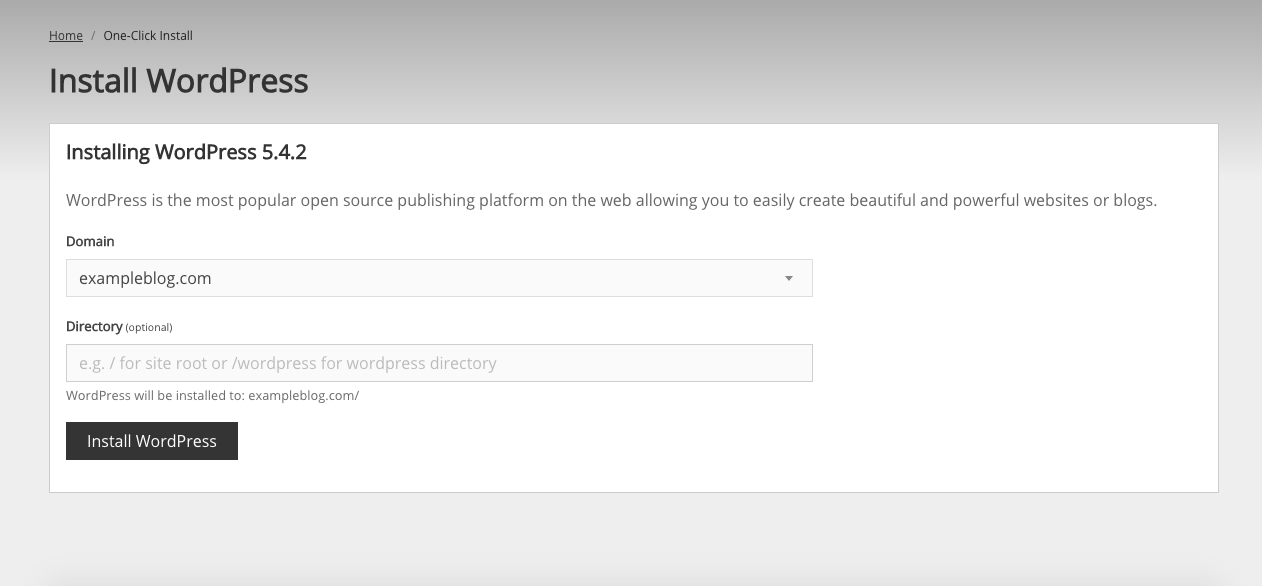
Click ‘Install WordPress’
In less than a minute you will receive this page, click the link provided to access it and complete the setup
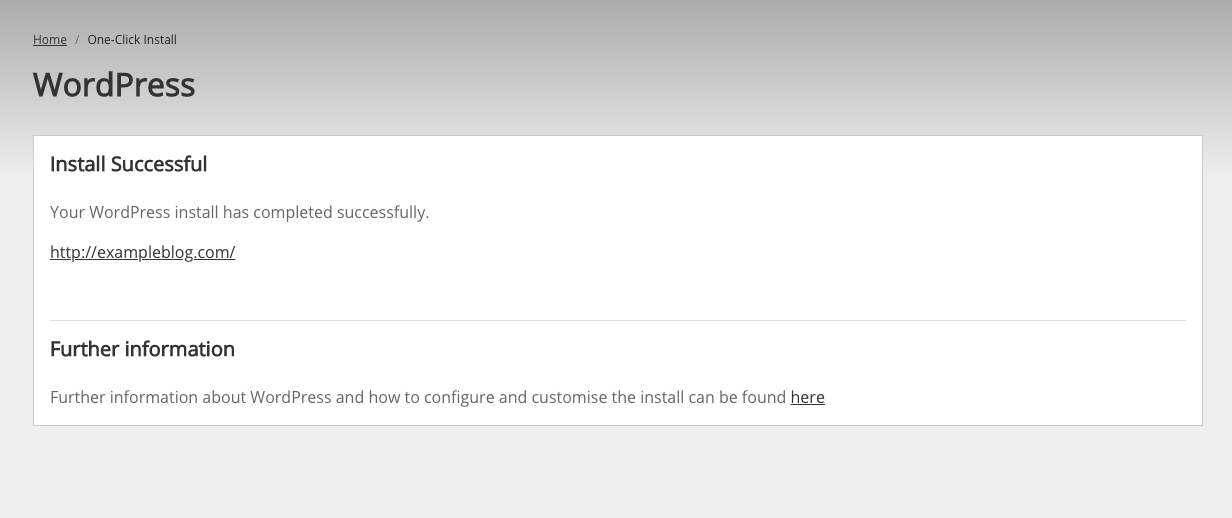
The page you are taken to will ask you to select your language, do so and click continue.

You will then be taken to the main setup page:

- Set your site title to whatever you have chosen as your blog name, don’t worry too much you can change this later if you need to.
- Set your username and password. I cannot stress enough the importance of using a strong password. This username and password will be the administrator login of your blog, it is all-powerful! If your password is not strong or easily guessed someone could log in and delete your blog and all its content.
- Set your email to a valid and accessible email address.
- Click ‘Install WordPress’.
DO NOT CHECK the ‘Search Engine Visibility’ checkbox, this should only be checked if you are setting up a test site.
You will see a confirmation screen with a button to log in. Click the button.
I highly recommend bookmarking the login page so it is easier for you to access in the future.
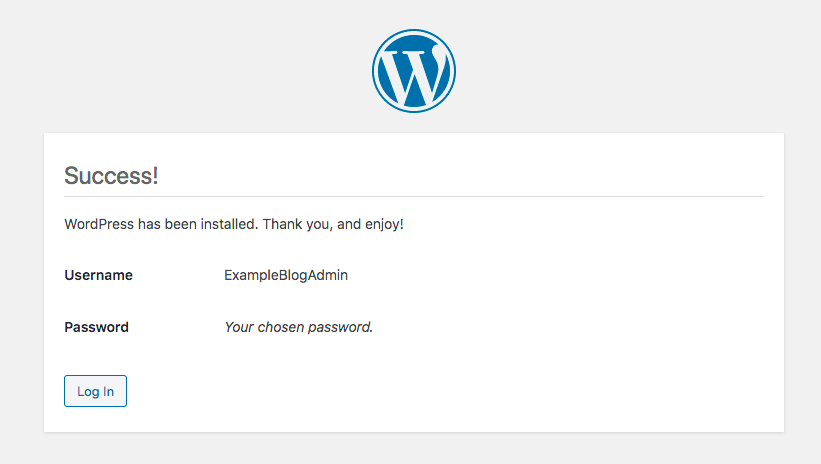
In less than 5 minutes, WordPress has been installed and you’re ready to start blogging. It’s that simple!
I’ve been using Eco Web Hosting to host my blogs for over 5 years and their support has always been great when needed. Their WordPress hosting packages start at £5.99 per month. Use my affiliate link and the coupon code below to get 20% off managed WordPress hosting: 20AFMWP